

What is the browser caching option
The Browser Caching option defines how long content is cached in end users’ browsers. It has two modes: Origin controlled (set on the source site´s configuration) and CDN controlled (set in the Gcore Customer Portal).Origin controlled
If you choose the Origin controlled mode, the content will be cached based on the origin settings specified in the Cache-Control header. For example, if your Cache-Control header is set as Cache-Control: max-age=172800 on your origin in seconds, the content will be cached for 2 days on the CDN servers. If the Cache-Control header is not specified, then most browsers will consider the Last-Modified header to decide how to handle files in the cache.NoteThe content will not be cached if there are no cache settings on your origin.
CDN controlled
If you choose the CDN controlled mode, the content will be cached based on the cache duration set for this option in the Customer Portal. You can select a value from the list or set a custom value in seconds.NoteHere are the HTTP response codes that can be cached in browsers: 200, 201, 204, 206, 301, 302, 303, 304, 307, 308. Other response codes will not be cached.
- Cache-Control. This header specifies the maximum time the object should remain in the local cache as valid. For a 12 hours expiry period, you will see Cache-Control: max-age=43200
- X-Cached-Since. This header contains the timestamp when the object was initially cached in the CDN cache
- Expires. This is a timestamp resulting from
"NOW()" + Cache-Control->max-agetelling the client browser to keep this object in cache for the amount of time specified by the max-age parameter in the Cache-Control header. - Cache:HIT or Cache:MISS. This shows if the file was delivered from the CDN cache or had to be pulled from the origin. It’s not relevant to the actual caching.
How to configure the browser caching option
- Go to the CDN resources section.
- Click the custom domain name of the CDN resource for which you want to configure Browser Caching.
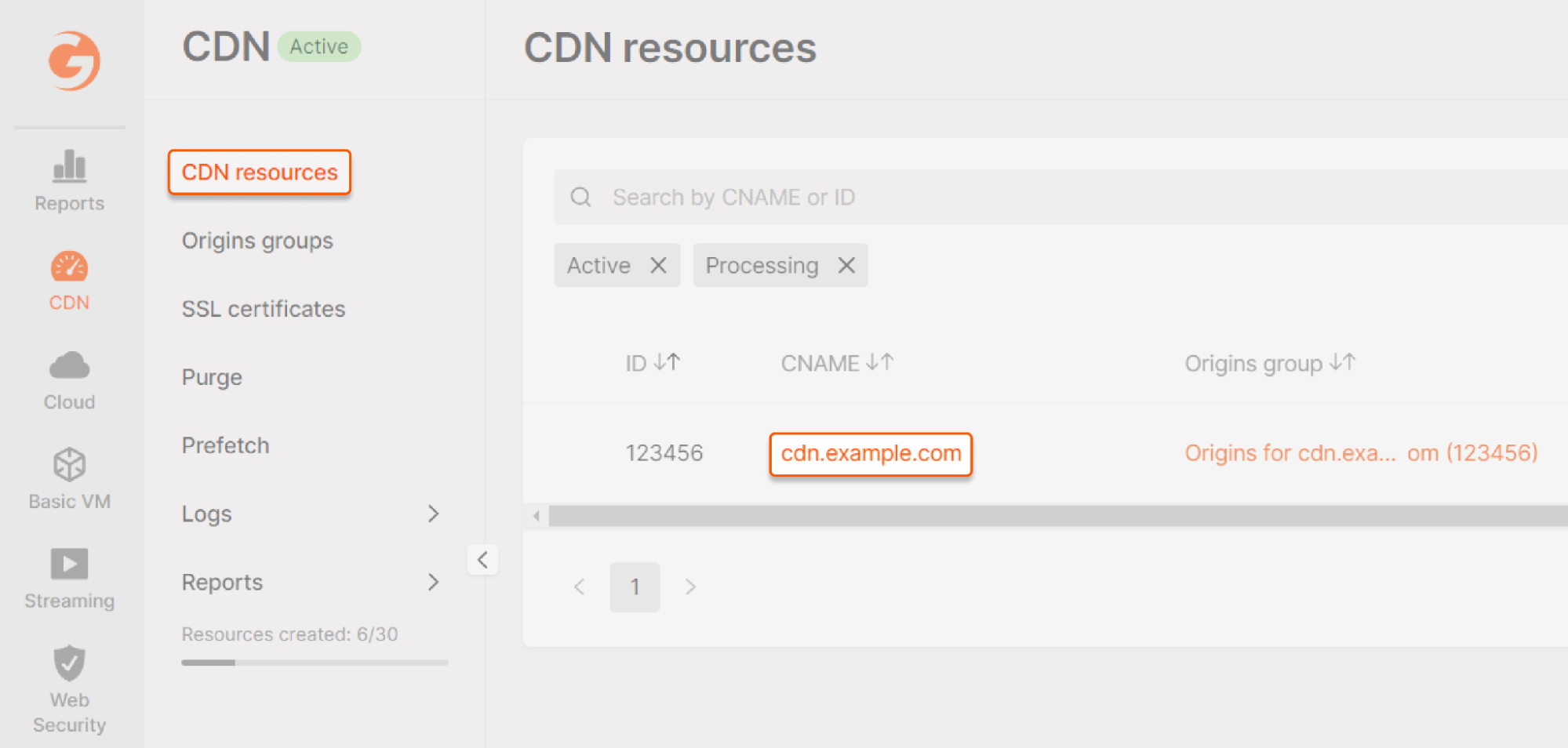
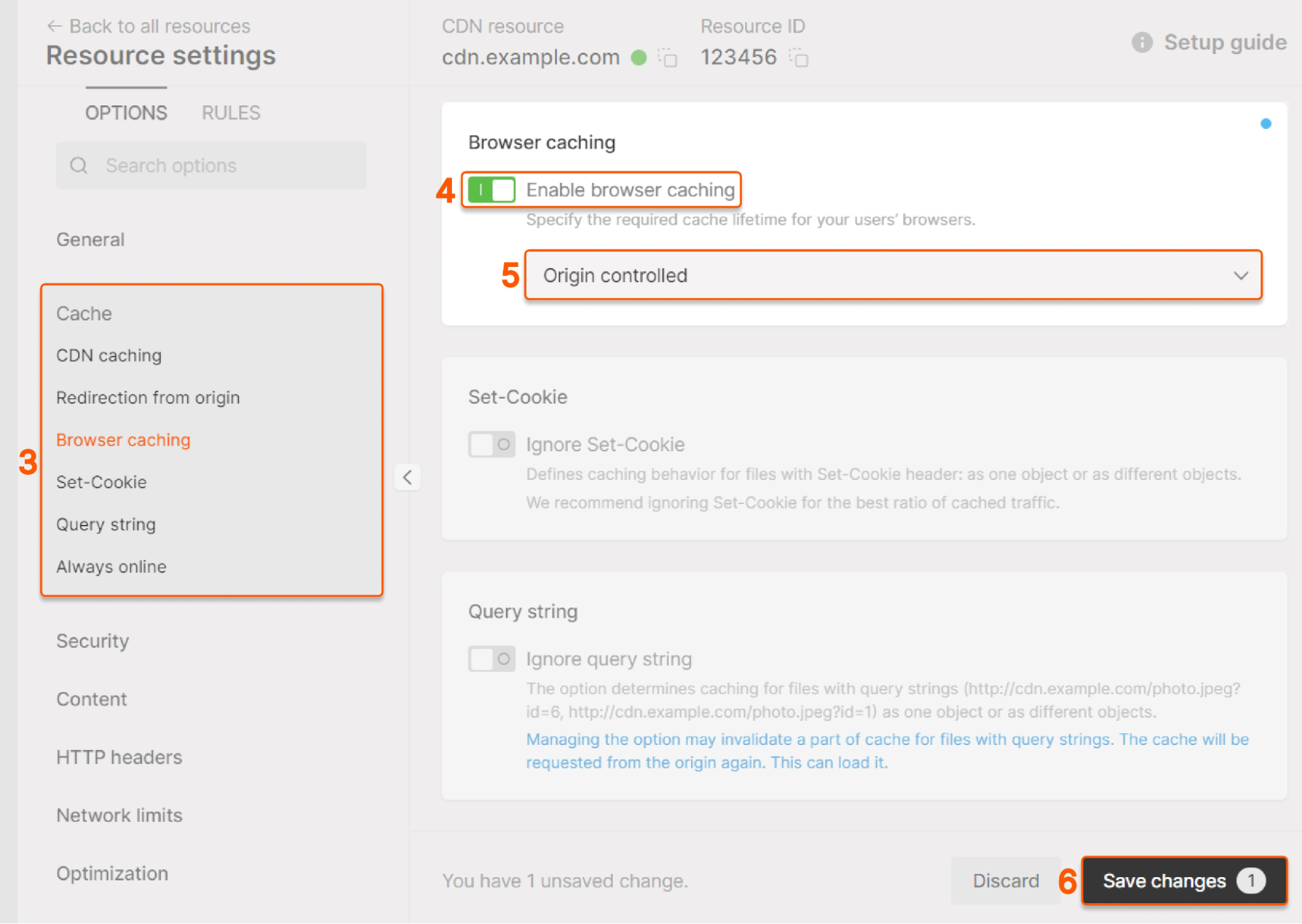
- Click on the Cache and then select the Browser Caching option.
- Toggle on Enable browser caching.
- Select Origin controlled or CDN controlled in the list. If you set Origin controlled, the configuration is complete; continue to step six. If you select CDN controlled, follow the instructions in the expandable block.
Configure CDN controlled mode
Configure CDN controlled mode
Choose one of the options from the list. The recommended value is four days.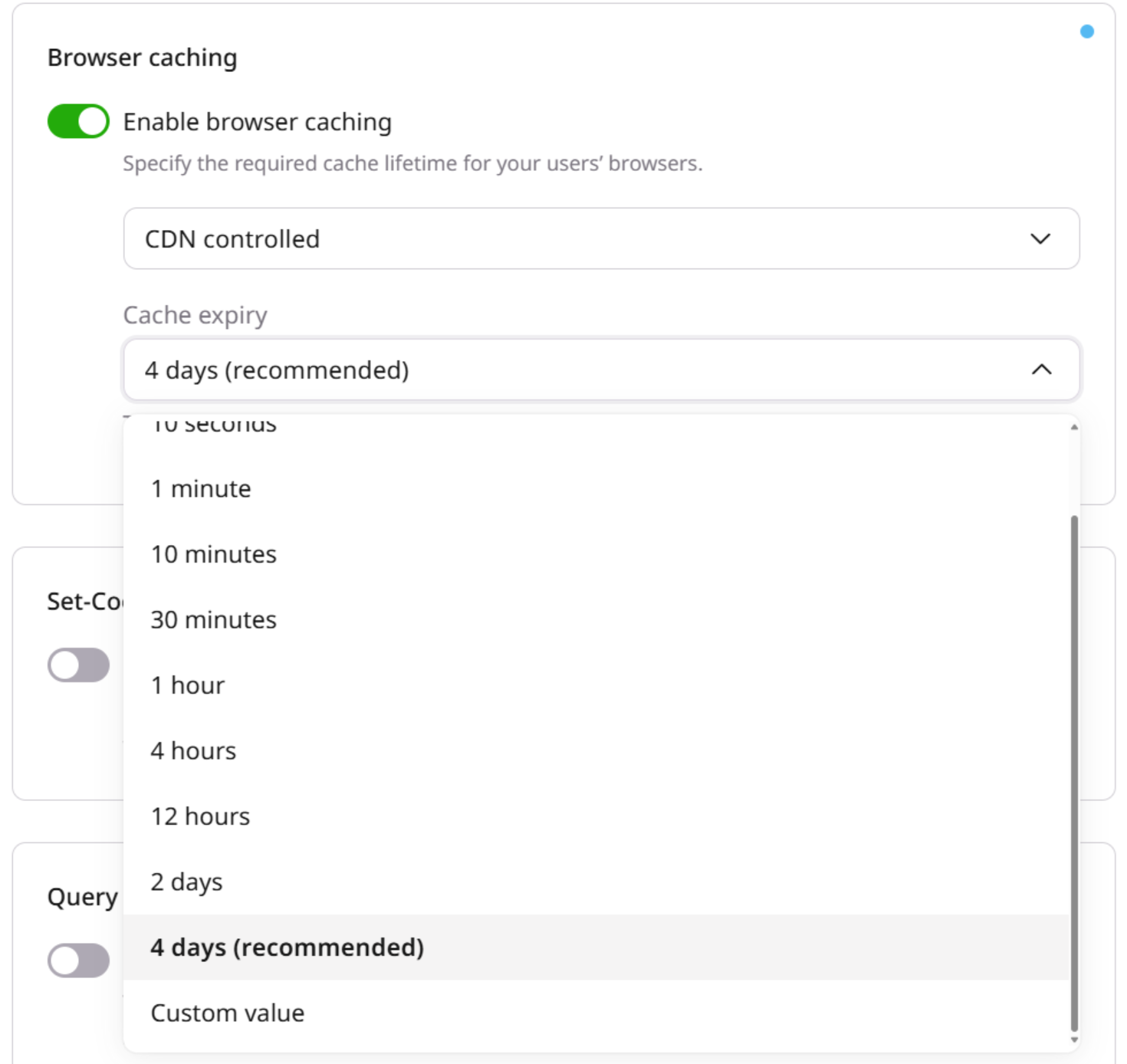
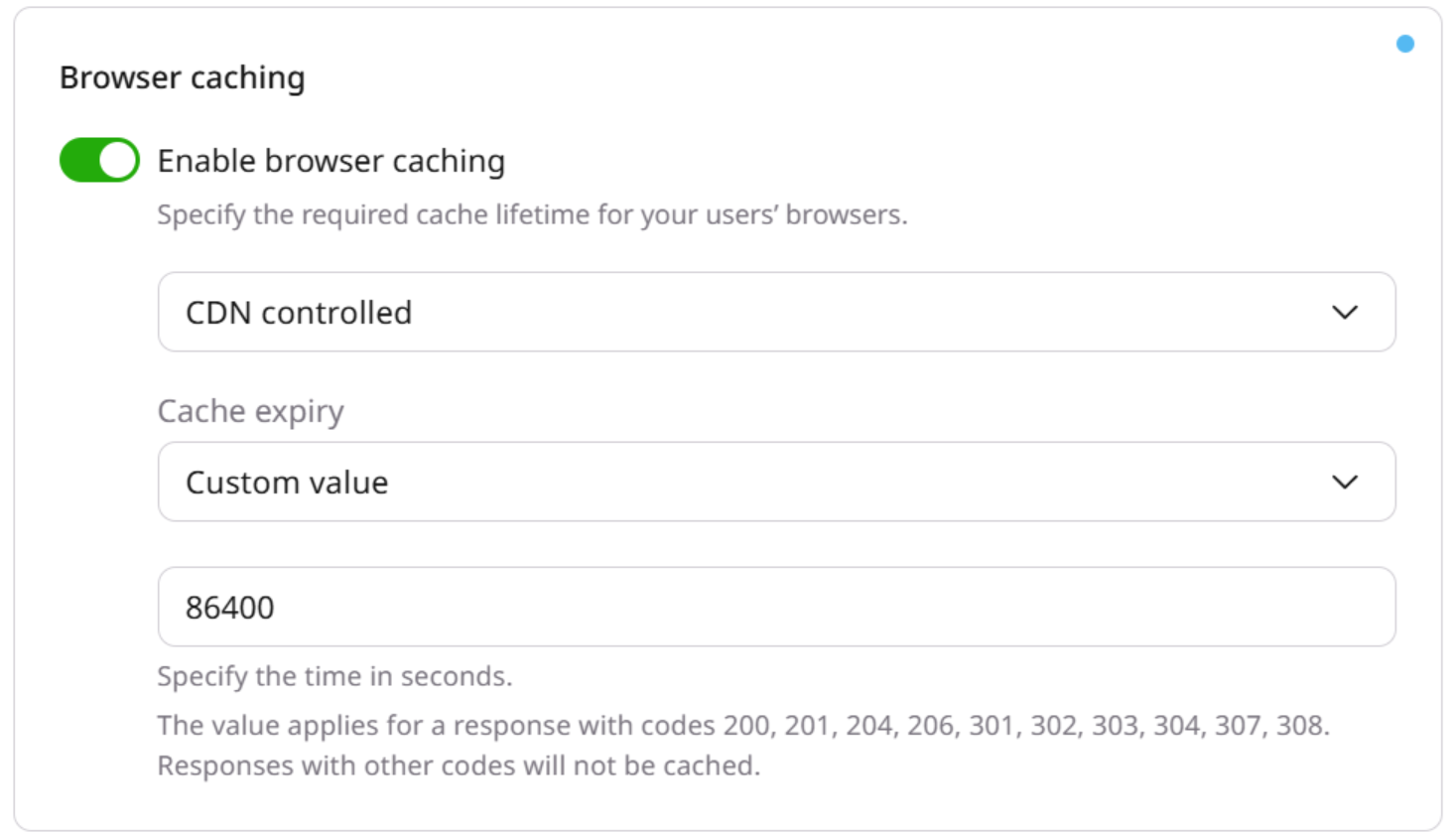
- Save changes.